Summary
This article only applies to ShoWorks 2006 users who are upgrading to one of the newer versions.
ShoWorks 2009/2012 can convert and read data (not reports) from files created from ShoWorks 2006.
Reports created in ShoWorks 2006 are no longer supported in the newer versions (more
informaton about reports created from ShoWorks 2006 may be found on the help article: http://fairsoftware.com/articledetail.aspx?AID=113028 )
Steps 1 through 6 below describe how to convert older files. Steps 7
through 10 describe how to futher create a new data file and import records from
prior years.
Steps
- Run ShoWorks 2009/2012 and verify that you are running at least version 12.1.3 or
newer (12.0.0 will not convert files). To find out which version of
ShoWorks 2009/2012 you are running, select Help > About ShoWorks. The
version will appear. If your version is 12.0.0 then you must first
update ShoWorks by exiting ShoWorks and going to
http://fairsoftware.com/updates
and following the instructions to downloading and installing the update patch
for ShoWorks 2009/2012.
- Locate your old data file(s) that you want to convert. Note: ShoWorks can
only convert data files in ShoWorks 2006 format (ShoWorks 2003 files are not
supported). You may locate your old data files by any of the following
methods:
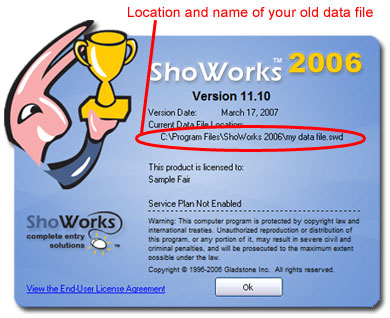
- If you have ShoWorks 2006 installed on the same machine, you may select
Start>>Programs>>ShoWorks 2006>>ShoWorks 2006 Info (a blue icon). This
will open the ShoWorks 2006 info screen and display the name and location
of the last data file that ShoWorks 2006 was reading:
- If you do not have ShoWorks 2006 installed on the same machine, you will need to
locate your ShoWorks 2006 data files by searching possible locations that the
file(s) may be located. The person who setup ShoWorks on your machine or
your network administrator would know this. ShoWorks 2006 files have a
.swd extension. For example, mydatafile.swd You may choose to use Windows
Search (Find) to find the files. See your Windows documentation for
instructions on how to find files.
- Run ShoWorks 2009/2012 if you do not already have it open and click the File
 or Office Button
 then Open Data File. Locate the file that you
found in step 2 above, highlight it, and click the Open button.
then Open Data File. Locate the file that you
found in step 2 above, highlight it, and click the Open button.
- ShoWorks 2009/2012 will then prompt you to convert the file. Choose "Yes" when
prompted.
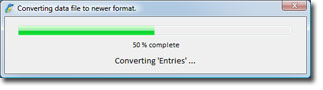
- A backup of your data file will be made and a new file will be created in the
new ShoWorks 2009/2012 format and be loaded.
- Repeat the steps 3, 4, 5 as needed to convert more files.
- Once you have converted your old files, you may start a new year with a fresh
file by selecting the File or Office Button then New Data File. You will be
prompted to specifiy a name for this new file (such as "myfair2012"). Note
the name and location of this new file and click "Open". A new data file
will be created and loaded with zero (0) records.
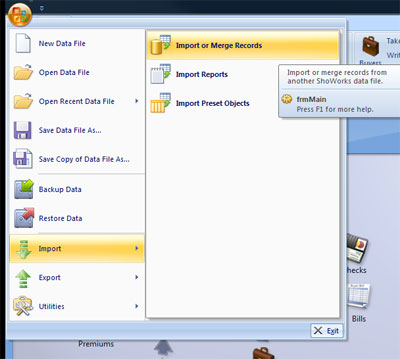
- Upon creation of a new file, you may be prompted to import any records from
previous years. If you are not prompted to import records, you may do so
by selecting Office Button then Import, then Import or Merge Records
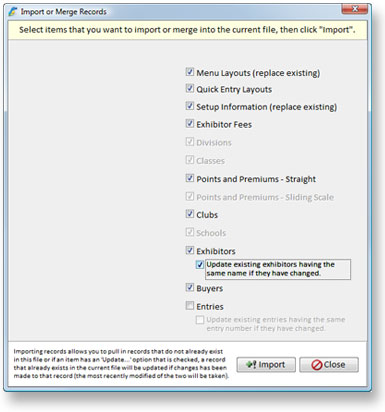
- Choose which records you wish to import into your new file by selecting the
appropriate check boxes, and then click the "Import" button.
- You will then be prompted to locate data files that contain the records that you
wish to import (see step 5). Locate the files and follow the onscreen
instructions.
