SYMPTOM
Premium amounts seem incorrect or do not appear on checks and/or other reports
CAUSE
- CAUSE 1:
The Points & Premiums menu may need recacluating (you should always "Recalculate"
premiums prior to writing checks or viewing reports for premium amounts).
- CAUSE 2:
You created a report and displayed incorrect fields.
- CAUSE 3:
(for checks only) You have created more than one check for a given exhibitor
where one has information prior to a premium calculation.
- CAUSE 4:
(for checks only) You have not yet created a check given a premium calculation
or have changed data since you have written a check for this exhibitor.
- CAUSE 5: (most common cause) Your Points & Premiums may be set up incorrectly.
RESOLUTION
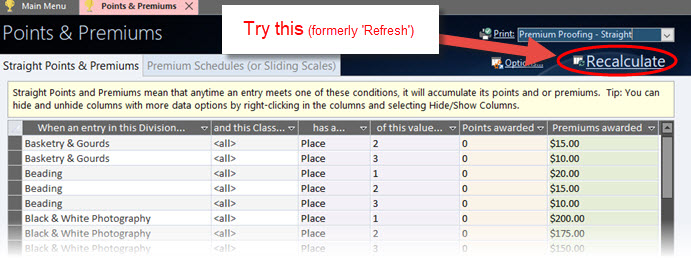
CAUSE 1: The Points and Premiums menu should be "Recalculated" after making changes.
Click the "Recalculate" (formerly labeled "Refresh" in versions prior to ShoWorks 2020) button before closing the Points & Premiums menu if you
have made any changes.
CAUSE 2: When creating custom reports using the "Entries" in step 1 of the report
wizard, make sure to include the fields "Total Premiums" and "Entry
Number". If the value seems incorrect, review the "Total Premiums" value
in the "Info" tab of the actual entry in the Entries menu. If this value
does not appear correct, then see Cause 1 above, or Cause 5 below.
CAUSE 3:
When viewing/printing checks, the premium may have already been included in a
prior check for this exhibitor. Make sure to review all checks to locate
any possible prior recorded transaction of this premium. If there is
another check for this exhibitor and you wish to combine the checks, delete
both checks and use the "write checks" feature to rewrite a single check for
the balance of this exhibitor. If the value seems incorrect, review the "Total
Premiums" value in the "Info" tab of the actual entry in the Entries
menu. If this value does not appear correct, then see cause 1 and 2
above.
CAUSE 4:
Checks do not change once they are written (regardless of printing).
Therefore after any premium and/or judging activity has occurred, once must
only then write checks. If a check has already been written before
premium calculations performed (and/or more placing activity has occurred), you
may delete the check and allow it to be re-written using the "write checks"
feature. If the value seems incorrect, review the "Total Premiums" value
in the "Info" tab of the actual entry in the Entries menu. If this value
does not appear correct, then see cause 1 and 2 above.
CAUSE 5: Make sure that your Points & Premiums are set up correctly. This is
the most common mistake because one thinks that a premium record is set up for
a particular scenario that will match the results of the placing of an entry,
when in fact it does not. There are two types of premium configurations - A)
Straight Premiums and B) Premium Schedules (formerly named "Sliding Scale Premiums" in versions prior to ShoWorks 2020).
A) Straight Premium Mistakes:
First Example of incorrect Straight Premium:
Division=My Division, Class=<all>, Breed=My Breed, Place=2, Premium=$5.00
In the above example, an entry having:
Division=My Division, Class=My
Class, Breed (left blank), Place=2
will not receive a premium because it does not match having a
Breed value of "My Breed".
Second Example of incorrect Straight Premium:
Division=My Division, Class=<all>, Breed=(left blank), Special Placing=Best of Show, Premium=$10.00
In the above example, an entry having:
Division=My Division,
Class=My
Class, Breed (left blank), Special Placing=Bes of Show
will
not receive a premium because it does not match having the Special Placing value of "Best of Show" (the misspelling of 'Best' the value 'Best of Show').
Third Example of incorrect Straight Premium:
Division=My Division, Class=<all>, Sub-Class=Youth, Ribbon=Blue, Premium=$4.00
In the above example, an entry having:
Division=My Division, Class=My
Class, Sub-Class (left blank), Ribbon=Blue
will not receive a premium because it does not match having the Sub-Class value of "Youth". Either change the premium rule's Sub-Class value to "<all>" or change the entrie's Sub-Class value to "Youth". If the Sub-Class field is not visible, right-click in any record and choose "Hide/Show Columns" or if this is not available, click the Customize Layout link in the lower left and make the field visible.
B) Premium Schedule Mistakes (formerly known as 'Sliding Scale Premiums' in versions prior to ShoWorks 2020):
1) Example of overlapping class counts in premium schedules:
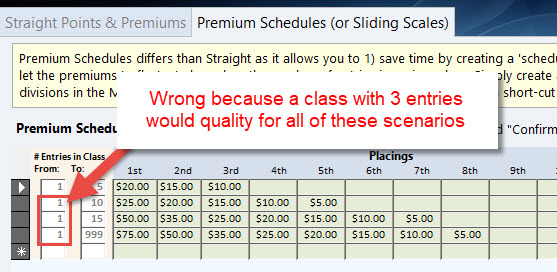
2) In the above example, premiums will be overstated for an entry that is in a
class having 5 entries because it satisfies all conditions.
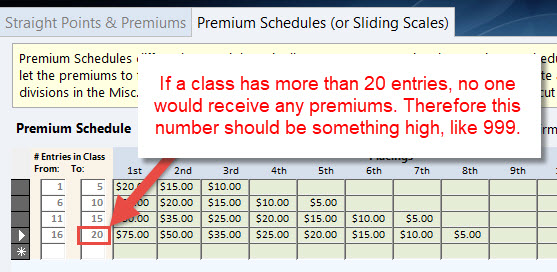
3) In the above example, classes having more than 20 entries will not receive any
scheduled premiums.
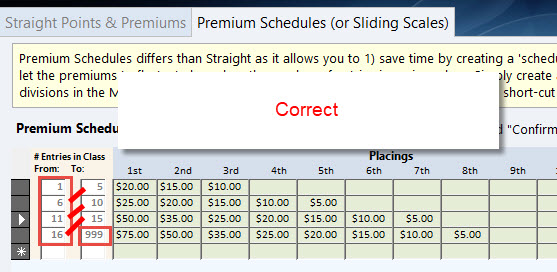
4) Above is a correctly setup premium Schedule (formerly known as Sliding Scale Premiums in versions prior to ShoWorks 2020).
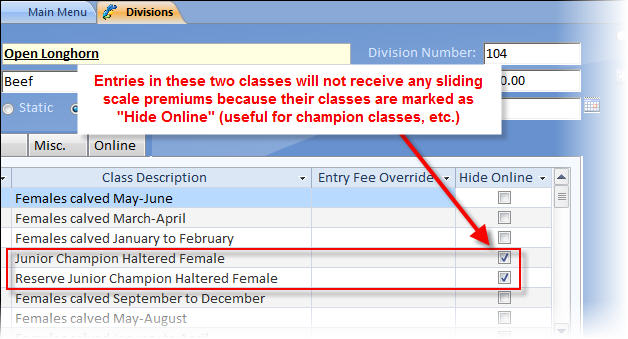
5) Any entries in the above two classes will not receive any scheduled premiums
because the classes are marked as "Hide Online".
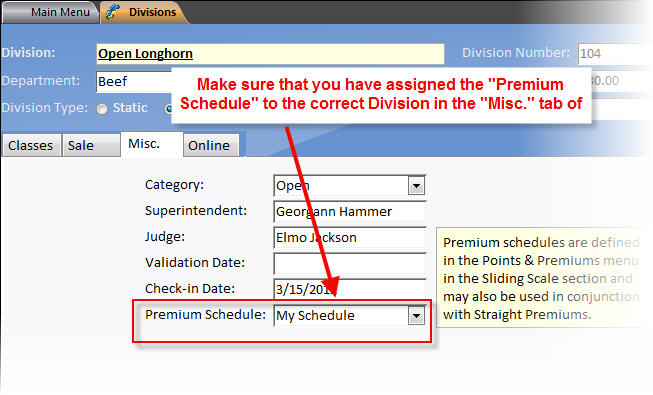
6) Make sure that the correct schedule is assigned to the correct division in the Divisions menu.
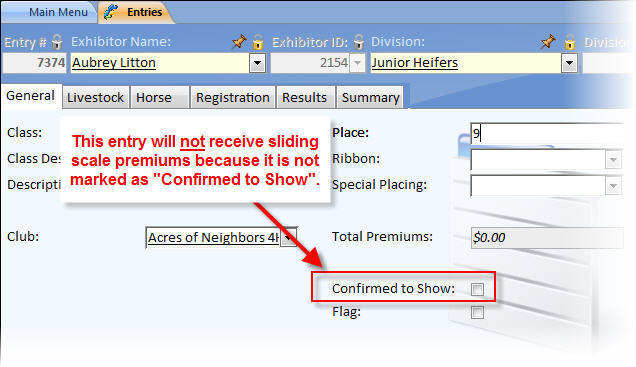
7) The above entry will not receive any sliding scale premiums because it is not
"Confirmed to Show".
8) Another common mistake in Scheduled Premiums (formerly known as Sliding Scale Premiums in versions prior to ShoWorks 2020) is failing to understand that
these premiums are calculated based on the total number of entries in a given
class. Remember, if you are adding entries, as you add, you are increasing
the number of entries in classes, and thus changing the calculation factor
(entry count) that premiums are based on. You should always
"Recalculate" premiums (button in the Premiums menu) prior to writing checks or
viewing premium amounts in reports. Note, the "Recaculate" button was formerly labeled "Refresh" in versions prior to ShoWorks 2020).
