Related Articles
The following articles may also be relevant:

This article applies only to ShoWorks 2012 and older.
This article also solves the problem when unable to open ShoWorks 2009 with a
message:
"A problem was encountered when starting ShoWorks. Please
run the most recent update located at http://www.fairsoftware.com. If you have
already ran the latest update, you should try restarting Windows and/or
re-running the update again tot correct any issues. ShoWorks reference item: 'swOpeninterface'.
Error Detail: 13 - Type mismatch."
SYMPTOM
Upon starting ShoWorks or the ShoWorks Access Companion, you receive an error message:
ShoWorks needs to read values in the Windows Registry...
CAUSE
Users with a Windows account that
is not the original 'administrator', experience problems (run-time errors or
failure to activate) when opening ShoWorks.
The Windows Registry and folders where ShoWorks is installed, have one or more locations that ShoWorks uses that are locked as read-only to the current user. This behavior can occur if you are user that does not have administrative
permissions. Administrators can run ShoWorks correctly without modifying
Windows, while non-administrators must have permissions enabled. You may also need to set
permissions to the location where ShoWorks is installed (such as "C:\Program Files (x86)\ShoWorks 2012\") to allow the user full access.
There are two possible solutions.
Solution 1 of 2: Set the icon to run ShoWorks as an Administrator
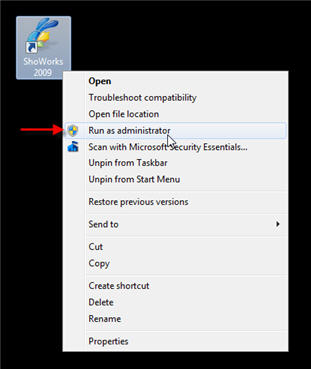
Windows Vista, 7, and 8 users may need to right-click on the ShoWorks icon and select "Run
as Administrator" to start ShoWorks. (Note: If
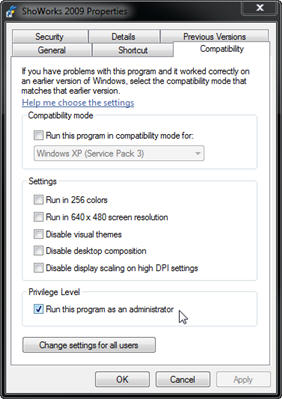
this behavior occurs each time, you can set the icon to permanently run as an
administrator by right-clicking on the ShoWorks icon, selecting Properties, then
Compatibility, then placing a check in the box that reads "Run as
Administrator".)
Solution 2 of 2: Enable registry permissions for users
WARNING: If you use Registry Editor incorrectly, you may cause
serious problems that may require you to reinstall your operating system.
Gladstone cannot guarantee that you can solve problems that result from using
Registry Editor incorrectly. Before you modify the registry, make sure to back
it up and make sure that you understand how to restore the registry if a
problem occurs. For information about how to back up, restore, and edit the
registry, click the following article number to view the article in the
Microsoft Knowledge Base:
256986 Description of the Microsoft Windows Registry.
To resolve this issue:
*Note: If you are NOT running a 64-bit version of Windows, the registry key locations
below will not have the extra folder "Wow6432Node" after the "Sofware" folder.
For example: HKEY_LOCAL_MACHINE\Software\Wow6432Node\Gladstone Inc.
-
Log on to your computer as an Administrator.
-
Start the Registry Editor by clicking 'Start', then type
regedit then click OK
-
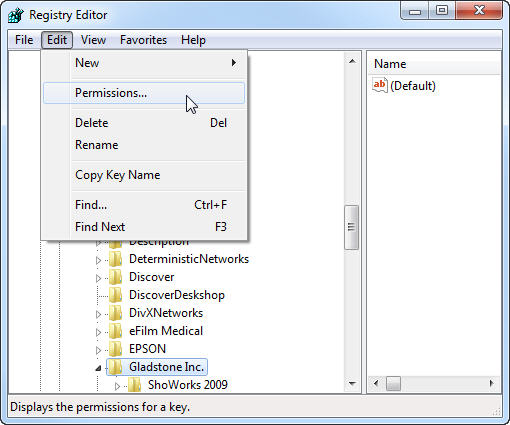
Navigate to the yellow folder and make sure it is
selected:
HKEY_LOCAL_MACHINE\Software\Wow6432Node\Gladstone Inc.
-
On the menu at the top, click Edit, then Permissions.
-
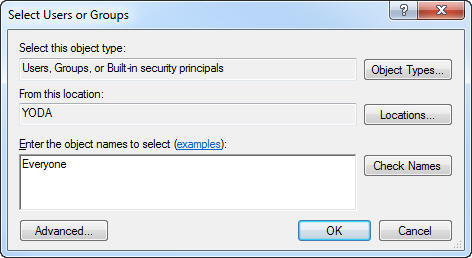
Click the Add... button.
- In the box "Ener the object names to select", type the word Everyone then click "OK"
-
In the Permissions box, place a check in the box "
Allow" for the "
Full Control" level. Make sure that you are applying this to the user "Everyone" by noting that Everyone is the selected item in the list of users above.
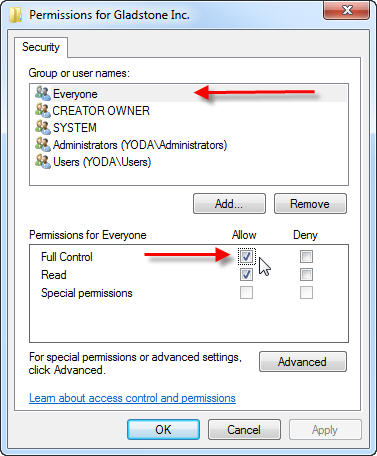
- Repeat this process for the following keys (if available):
HKEY_LOCAL_MACHINE\Software\Wow6432Node\Shared Databases\Microsoft Access
HKEY_LOCAL_MACHINE\SOFTWARE\Microsoft\Office\15.0\ClickToRun\REGISTRY\MACHINE\Software\Wow6432Node\Gladstone Inc.
HKEY_LOCAL_MACHINE\SOFTWARE\Microsoft\Office\15.0\ClickToRun\REGISTRY\MACHINE\Software\Wow6432Node\Shared Databases
-
Close the Registry Editior
-
You may need to also set permissions on the actual folder that ShoWorks
resides in. Normally, this is not required, but if steps 1 through 9
do not resolve the problem, do this following:
-
Using Windows Explorer, navigate and right-click on the folder "C:\Program
Files\ShoWorks 2012\" (or "ShoWorks 2009")
-
Choose "Sharing and Security"
-
Click the "Security" tab and verify that the user has "Full Control" of this
directory. If not, then add them with full control.
