Summary:
You may back-up (Save) your ShoWorks data file to protect your data, or to
transfer your data to another computer.
Important! Many users make the mistake of confusing
which files they have opened and often end up working in a backed up file while
later working in a different file. This causes them to believe that data
is missing when in fact they are working in multiple files. KNOW YOUR
FILE NAME AND LOCATION!
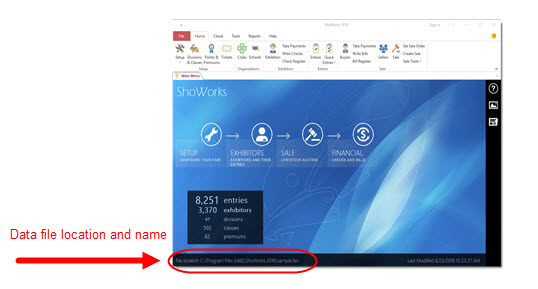
Tip: Your data file name and location can be found on the main menu at the VERY bottom of the ShoWorks screen.
Method A - using ShoWorks (simple, makes off-site backup)
Steps:
- Click File
 then "Backup Data".
- Follow the onscreen instructions.
Method B - using Windows Explorer (fast, does not require ShoWorks to be open, can be done while other users are active in the same file)
Steps:
-
Note the location and name of your data file - this is listed at the top of
your ShoWorks window.
-
Minimize ShoWorks (if it is currently running)
-
Open Windows Explorer and locate your data file (found in step 1 above).
-
Highlight the file by clicking it once (do not double-click because doing
so will open the file).
-
Select Edit > Copy from the menubar.
-
Select Edit > Paste from the menubar. This will paste a copy of the
file in which you can later revert to (by opening it).
Method C - using ShoWorks (can only be performed when NOT on a network)
Steps:
-
Open ShoWorks
-
If the data file you wish to back-up is not currently open, open it by
selecting "File" then "Open Data File..." and clicking on the file you wish to open. Then
click "Open".
-
Select "File" then "Save Copy of Data File As...".
-
Determine the location (folder or directory) where you would like to save this
file as a back-up to and select it from the "Look in" drop down box. You may
want to back up your data file to a floppy disk however it is advised to save
it first to your hard drive and later copy this to a floppy using Windows
Explorer.
-
Type a name for this file or select a data file that may currently be
displayed. If you select an already existing data file, it will be overwritten.
-
Click on the "Open" button.
-
The current file will be saved (note, if you did not choose 'Save Copy of Data File As' and instead chose 'Save Data File As'" then the new copy will now the current loaded file.
